

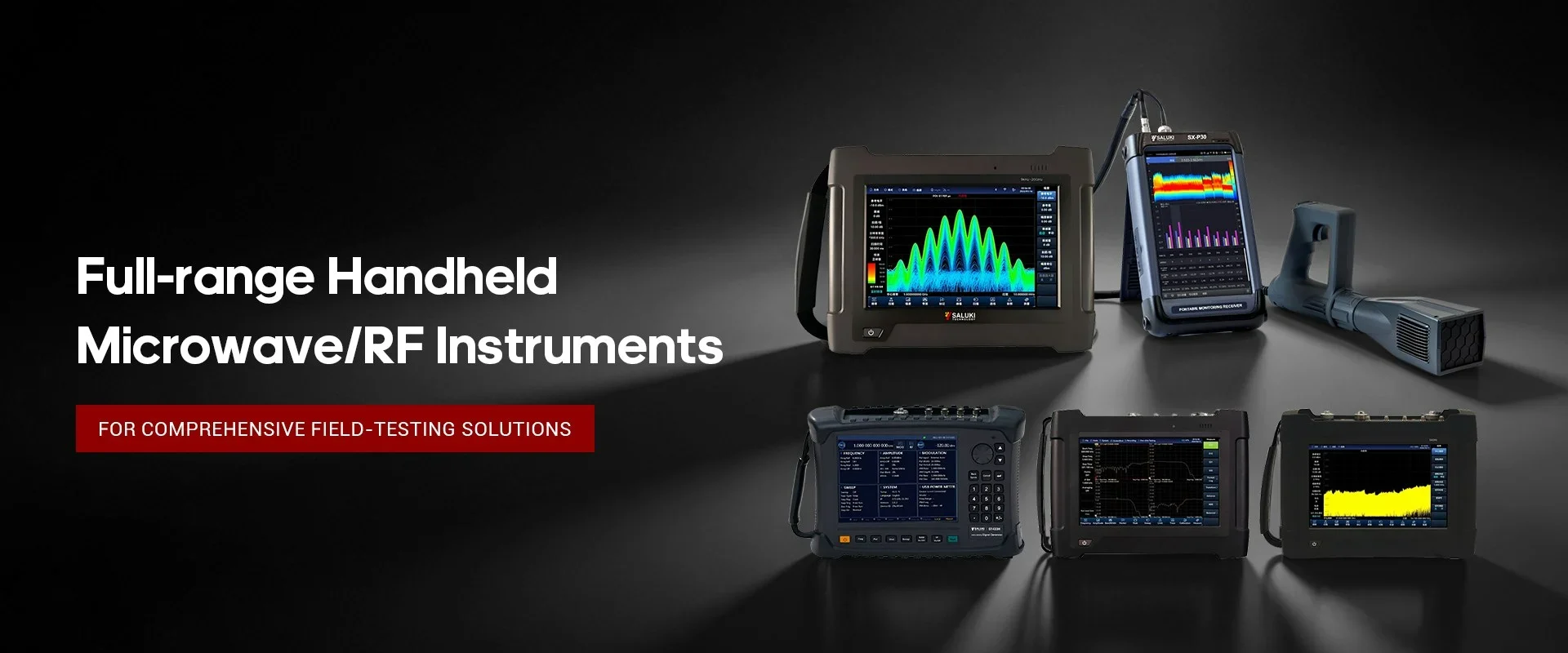
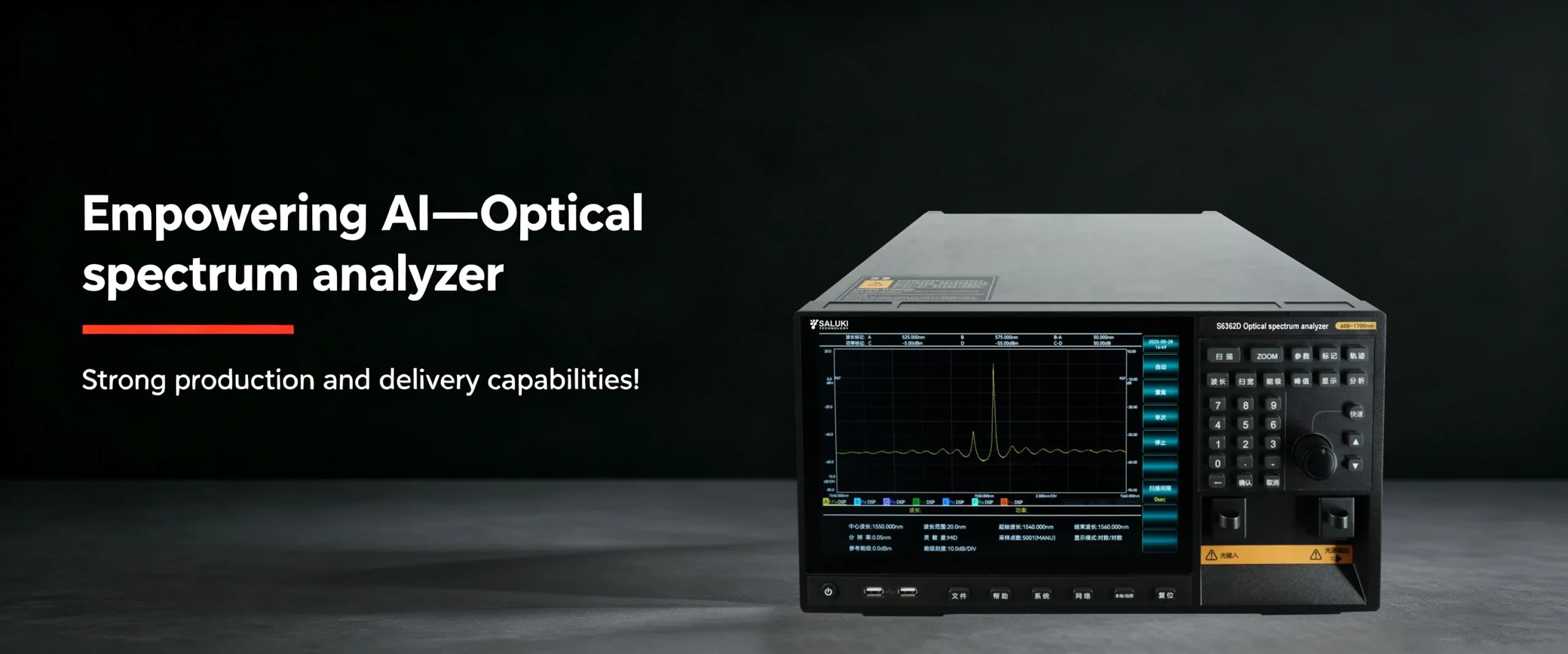
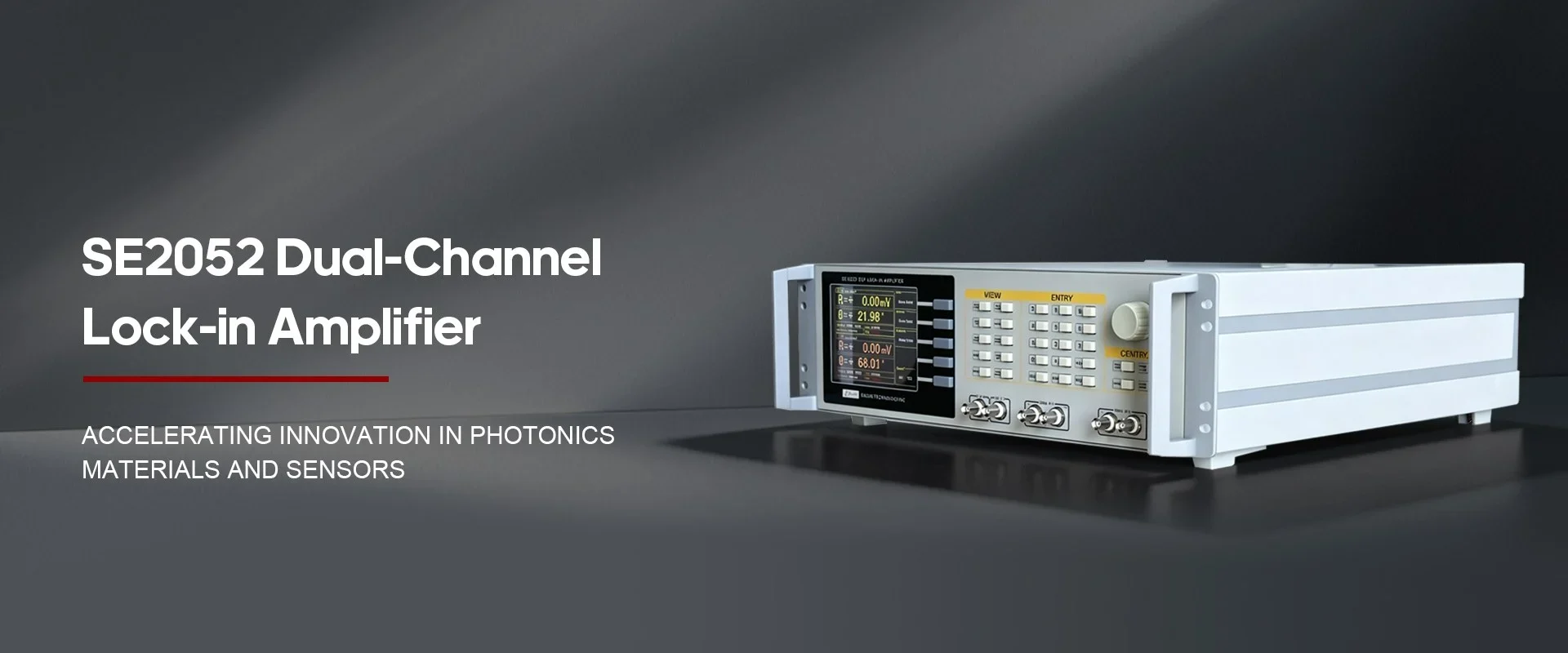
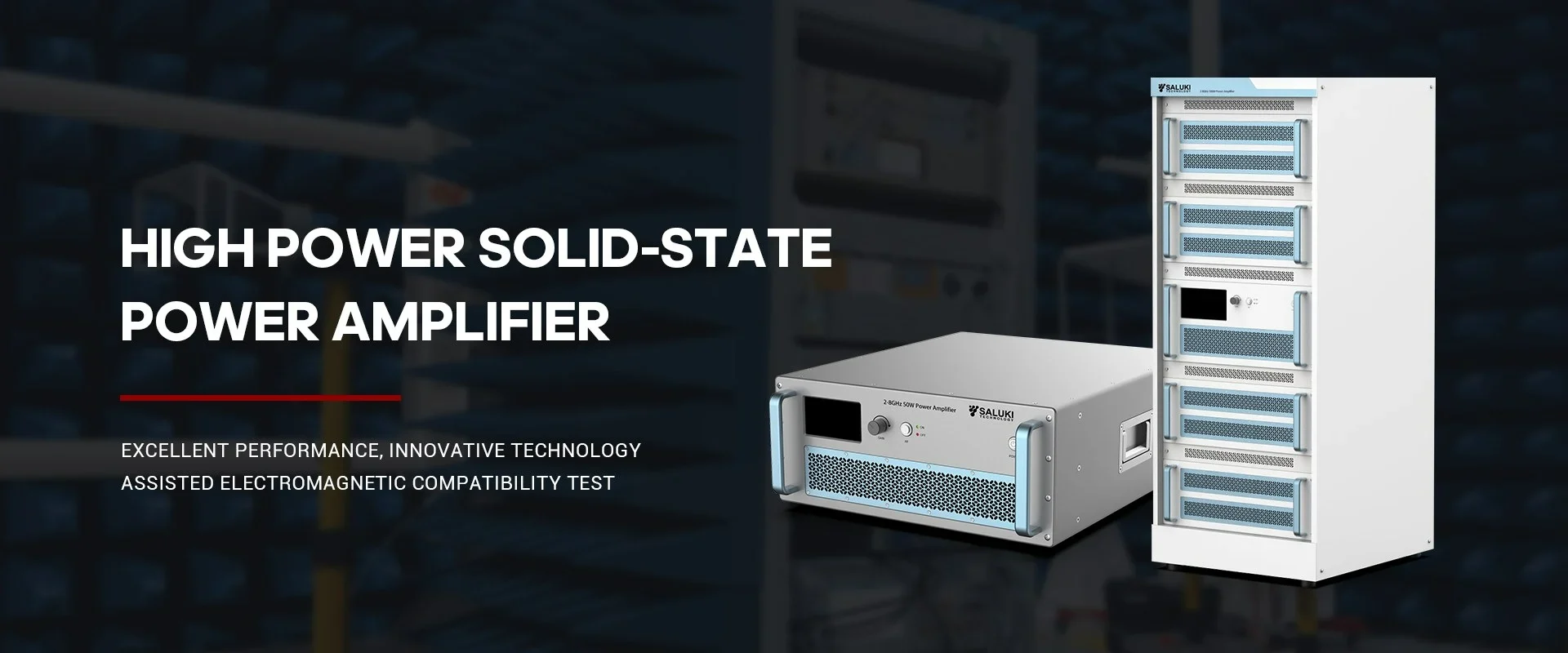

Best Selling Products
Contact us: sales@salukitec.com
As a professional RF, microwave, and millimeter-wave products manufacturer and supplier in China.
Whether you’re a reseller, distributor, solution provider, or startups, we have a solution to help you grow your business and bring new solutions to market. We believe it is a great opportunity for you to grow with us.
Company Profile
Overview
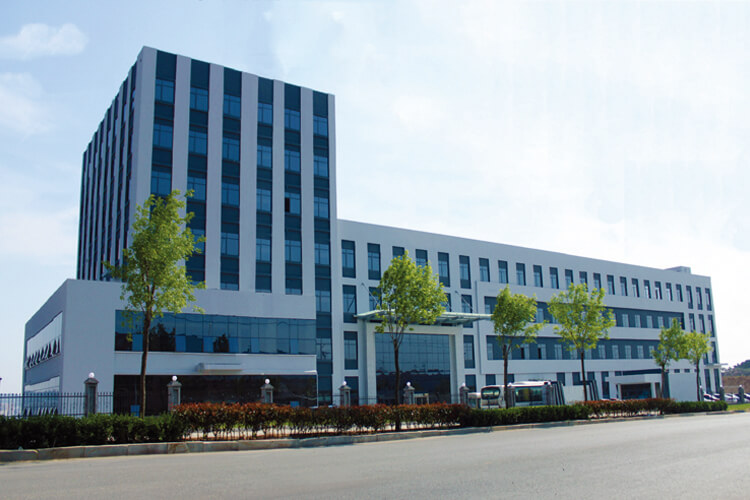
Saluki Technology Inc. is a high-tech company, supplier and manufacturer of High-end RF&MW Test Equipment, General Test Equipment, Lab Equipment and Optical Communication Equipment. Founded in 1997, the company was initially an agent of telecommunication equipment, and it once ranked second in the Chinese market. With an in-depth understanding of the market and user needs, meantime a deep accumulation of technology, the company began to develop its own brand of test equipment in 2008, and promoted it mainly for the Asian market. Beginning in 2015, the company moved its headquarters to Taiwan, and began to face more overseas markets and built the SALUKI brand.
At present, the company has exclusive agents in South Korea, Turkey, and stable partners in markets of countries like Canada, Germany, the United States, the United Kingdom, Finland, Poland, Indonesia, Israel, Vietnam, and South America.
We are committed to establishing a stable partnership with local agents to provide customers with the most professional, fast and long-term services.
Our Vision
Accurate, Fast and Reliable
-
20+
Work Experiences
-
100+
Sales Engineers
-
10+
Branch Openings
We can also provide the following brands
The random noise in cable & antenna analyzer receiving path degrade the measurement accuracy. To reduce the trace noise and lower noise floor, S3101 Cable and Antenna Analyzer provides three functions including average, smooth and adjust IF bandwidth in order to obtain more accurate results and greater dynamic range.
1. Reduce IF Bandwidth
IF bandwidth can be narrowed to reduce the noise of the Analyzer, thereby reducing the impact of noise on the measurement results and reducing trace noise. The noise floor can reduce by 10dB with each reduce of 10 times of IF bandwidth. S3101 cable and antenna analyzer supports variable bandwidth IF filter, wherein the frequency bandwidth can be set from 10 KHz down to 1Hz at minimum, with step changes in 1, 2, 5 and 10. But note that the IF bandwidth reduce will elongate the sweep time. IF bandwidth setting steps are as follows:
1) Press [Sweep/Setup] key to enter Sweep/Setup menu bar;
2) Click [Avg/BW] menu to enter Avg/BW menu bar;
3) Click [IF BW] to pop up the “Set IF BW” list. Select the desired IF bandwidth by turning the knob, [UP] or [DOWN] or touching the selected items, and then click [Enter] key on the IF bandwidth dialogue box or [Enter] key to complete setting, as shown in Fig.1:
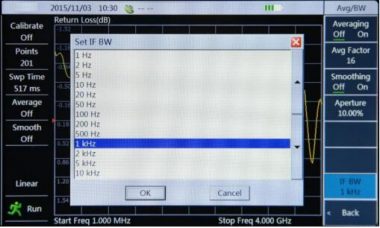
Fig.1 Set IF bandwidth
2. Sweep Average
Through several successive sweeps, the Analyzer takes the average value on the same measurement point for each measurement to calculate each measurement value. The setting of average factors determines the times of constant sweeps. The larger the average factor is, the more effective the decrease of impact of noise on the measurement will be.
1) Press [Sweep/Setup] key to enter Sweep/Setup menu bar;
2) Click the touch screen [Avg/BW] menu to enter Avg/BW menu bar;
3) Click the touch screen [Avg Factor] menu to input the appropriate average factor (1000 at a maximum) by turning the knob, [UP] or [DOWN]or numeric keys, and then press [Enter] key to complete setting;
4) Click the touch screen [Avg Off On] menu, the Analyzer will average the average factors set by operators and display the averaged trace on the screen, as shown in the Fig.2:
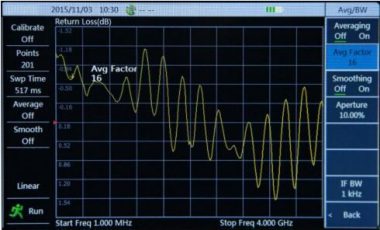
Fig.2 Set average factors
3. Trace Smoothing
Trace smoothing is displayed through the average of adjacent data points, and the ratio of adjacent data points to be averaged and total points is called smooth aperture. S3101 cable and antenna analyzer sets the smooth aperture in a manner of percentage. Smoothing function can reduce the noise peak-peak value on the measurement data track without significantly increasing the sweep time.
1) Press [Sweep/Setup] key to enter Sweep/Setup menu bar;
2) Click the touch screen [Avg/BW] menu to enter Avg/BW menu bar;
3) Click the touch screen [Aperture] menu to input the smooth aperture (20% at a maximum) by numeric keys, and then press [Enter] key to complete setting;
4) Click the touch screen [Smooth Off On] menu to turn on or off the smoothing function, as shown in Fig.3:
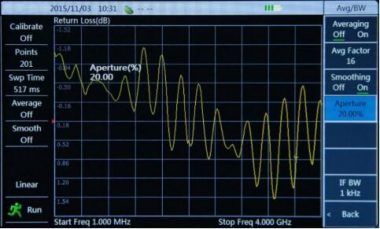
Fig.3 Set smooth apertures
