


How to Install Lock-in Amplifier PC Software & FT232 USB-to-Serial Driver |
The PC software for lock-in amplifiers is usually provided to users via CD. It runs on Windows 7/8/8.1/10 (32-bit and 64-bit) systems. Proper driver installation ensures stable connection between the device and your computer. Follow the steps below for full setup.
Step 1: Install the FT232 USB-to-Serial Driver |
Driver installation is the prerequisite for normal communication between the lock-in amplifier and your PC. The full process includes two steps:
1. Launch the driver installer |
Open the installation folder on the CD, locate the FT232_drive.exe file. Right-click the file and select Run as administrator to bring up the installation window. The program will run the installation automatically; just wait for several minutes.
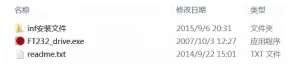
Figure 1. Folder
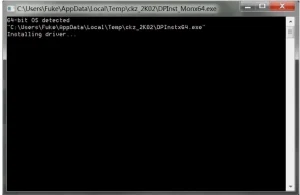
Figure 2. FT232 driver installation interface
2. Finish the driver installation |
A completion prompt will appear when the FT232 driver is installed successfully. Press the Enter key as prompted to complete the entire driver setup.
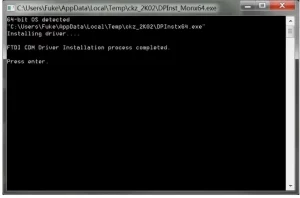
Figure 3. FT232 driver installation completion prompt.
Once the driver is installed, connect your PC to the lock-in amplifier with a USB cable, and the system will recognize the device automatically.
Notes & Troubleshooting |
- Automatic driver installation: If your PC is connected to the internet, Windows will automatically search for and install the matching driver when you plug in the USB cable between the PC and lock-in amplifier.
- Skip if already installed: If the same USB-to-serial driver has been installed on your PC previously, you can skip this step and connect the device directly.
- Failed installation fix: If the driver installation fails, refer to the txtfile in the “Serial Driver” folder, and follow the instructions to perform manual installation using the .inf file.
Related products: |
Lock-In Amplifiers: Principle, Applications & Products | Saluki Technology
♦ Need technical support or a custom solution? Contact our application engineers: saluki@salukitec.com.
♦ To request a quotation, please contact sales@salukitec.com or click “Contact Us“ to leave a message.
